Project Context
Editing support inside the document
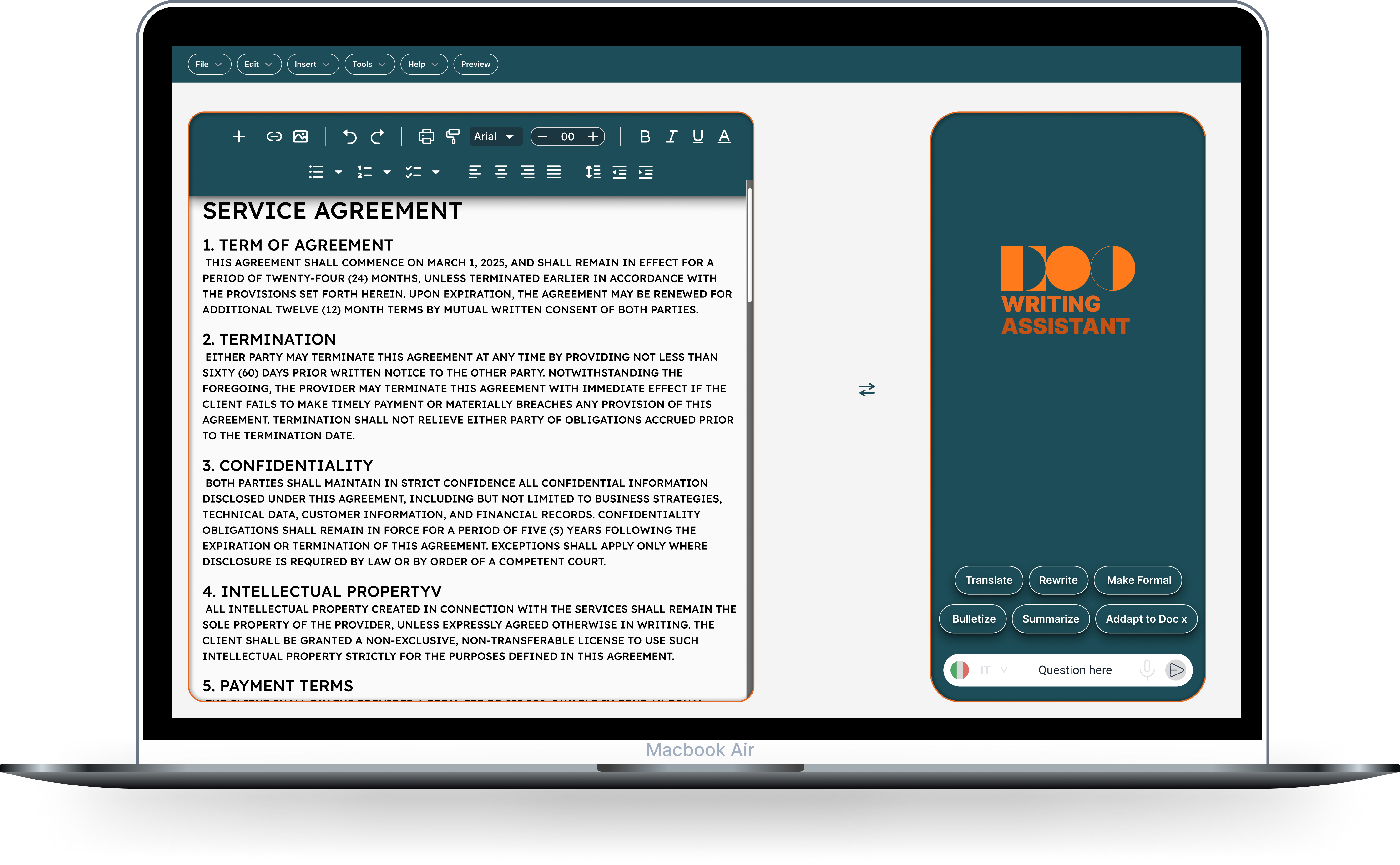
Writing Assistant brings AI editing support directly into the document, so users can work on selected text without switching to a separate chat or losing the surrounding context.
CASE STUDY
A selection-based document editing workflow where users highlight text and apply AI actions without leaving the editor.
Project Context
Writing Assistant brings AI editing support directly into the document, so users can work on selected text without switching to a separate chat or losing the surrounding context.
The UX Challenge
I designed how in-document editing and AI assistance work together: select content, trigger an action, review the result, and keep writing in the same place.
Core Workflow
The interaction rule is simple: selection communicates intent. Users highlight text, choose an AI action, review the generated result, and continue editing in the same workspace.
Three compact states show how the same selected text can be transformed in different ways.
Converts selected text into another language while keeping the original document visible.
Condenses longer text into a shorter version for faster review.
Transforms dense text into structured points for easier scanning.
I designed the experience as a repeatable loop: select, act, review, continue. That keeps the interaction easy to understand while leaving room for additional AI actions over time.
The assistant works as a contextual editing layer inside the document instead of a separate destination. It supports the document by making common AI transformations available at the moment they are needed.
When the useful writing actions are already known — like Translate, Summarize or Bulletize — the interface can expose them directly. Asking someone to write a prompt for each action only slows the edit down.
Final Solution
Editing and AI assistance stay inside the document. Selected text is the input, actions stay explicit, and generated content is reviewed before anything is applied.
That keeps the loop short: select → choose action → review → continue editing, instead of sending people into a separate chat.
Outcome
Users can revise, compare, and keep writing without leaving the document.
New editing actions can be added later without changing how the user works: select text, choose an action, review the result.
Reviews
Worked with me or explored the site? I’d love to know what stood out.
Loading reviews…
Reviews are temporarily unavailable.
Be the first to leave a review.
What stood out, and what would you approach differently?